


Dynamics 365 storage is split across three Dataverse capacity pools: Database, File, and Log. Exceeding your entitlement blocks admin operations and forces costly add-on purchases.
Steps to reduce storage:
- Check which storage pool is full – take a look at our blog post My Dynamics 365 Storage is Out of Capacity, What Can I Do?
- Run bulk deletion jobs on bloated system tables (AsyncOperationBase, WorkflowLogBase, ActivityPointerBase)
- Delete old audit logs and tighten retention periods per table
- Move documents to SharePoint so attachments stop counting against Dataverse File capacity
- Archive inactive records using Dataverse long-term retention (up to 50% compression) or Azure Blob Storage
- Remove deactivated Power Automate flows and clear plugin trace logs
This post is for people who’ve diagnosed which areas of storage are in need of pruning, if you want help with that diagnosis, look at post – My Dynamics System is out of Storage Space – What Can I Do?

Reducing your Dynamics Database Storage
Many of the suggestions involve using a Bulk Delete or an Advanced Find. We won’t go in to details here about how to use these features, as there are many guides on the web.
What bulk deletion jobs can I run to reduce Dynamics 365 database storage?
Bulk deletion jobs target the three system tables that typically consume the most database space: AsyncOperationBase, WorkflowLogBase, and ActivityPointerBase.
Look in Power Platform admin centre and note which tables are very large or growing in size quickly. See our guide for help

Here’s some of the tables which can become huge in your Dynamics system. For each table we’ve made some suggestions below.
- Activity Pointer Base
- AsyncOperationBase
- WorkflowLogBase
How to Reduce ActivityPointerBase Size
The activity pointer (activity) table contains any activity or task that is performed, or to be performed by a user. You’ll notice each activity type also has a matching table (E-mail messages, Phone Calls etc). The data are synched between the matching tables, so if you delete a phone call entry from the Phone Call table, it will be deleted from the Activity table also.
Activities types include:
- Appointment
- CampaignActivity
- CampaignResponse
- Fax
- Letter
- PhoneCall
- RecurringAppointmentMaster
- ServiceAppointment
To reduce the size of Activity Pointer Base, search for and delete any activities which aren’t relevant to your business. Set up a bulk delete to keep the size down in the future.
Here are some examples of what you can delete. Tailor it for your business and your retention policy
Email Activity Records
Often the largest consumer of storage space are email messages. You can find email messages with a search like this

There are many possible criteria to search for emails to delete
- By sender or recipient
- By subject (out of office / automatic reply)
- By date
If you’ve previously deleted an email from your inbox (in Outlook for example) it will still exist in Dynamics. Likewise if you delete an email from Dynamics, it will not disappear from Outlook.
It’s good practice for users to regularly review their emails stored on Dynamics and delete any which are irrelevant (spam, personal emails etc)
As of May 2023 email body records are no longer being stored in the Dataverse, but have been moved permanently to an Azure blob storage system. This should free storage space and save money for most users. See Microsoft’s information about this
Phone Call Records
These records can also take up lots of space, depending on your business type. You can search for these in a similar way to email records.
Huge Indexes
If any of your activity views in Dynamics contain a description field, this will cause the index of the view to become large. Audit your views, remove any description fields and contact Microsoft to re-index.
If you’ve tried these ideas, and the size of Activity Pointer Base hasn’t decreased much, then you should contact Microsoft Support
How to Reduce AsyncOperationBase Size
The AsyncOperationBase table is used to store system jobs. System jobs represent asynchronous extensions, such as workflows and plug-ins, bulk deletion, bulk import, and rollup operations.
Quick wins in AsyncOperationBase
In Dynamics open an Advanced Find and run a search similar to this

Microsoft recommend deleting all successfully completed system jobs which are older than 30 days
Jobs with other status reasons like Canceled, Failed or Waiting should be investigated before a bulk delete. You may well discover 1000s of waiting system jobs. Some will never finish because their criteria are impossible to meet, but some may be valid, and waiting on a criteria in the future. Be cautious
If you’re happy with deleting records, you can schedule this using a Bulk delete job.
More details and ideas on Microsoft’s Dynamics site
How to Reduce WorkflowLogBase Size
This table stores bulk email and workflow instances. In a similar way to the 2 tables above, you should search for and bulk delete specific system job records


Reducing your Dataverse file storage size in Dynamics 365
How do I delete emails and attachments in Dynamics 365?
The main consumer of file storage space in Dynamics are attachments, and in particular, email attachments.
- Open your Dynamics environment
- Go to this URL to use Advanced Find (legacy) which is still the best way to find and delete attachments https://yourorg.crm.dynamics.com/main.aspx?pagetype=advancedfind
Build an advanced find like below to get an idea of how many large emails are in your system and how large they are.

You can add search criteria to help find emails which are safe to delete:
- By date
- By sender
- By recipient
- By subject
Bear in mind that you’ll be deleting the attachment and the email record. Remember that these emails will not be deleted from your email program, usually Outlook.
You can automate this process using Dynamics’ Bulk Delete feature
How to remove email messages with attachments using bulk deletion
- Sign in to the Power Platform Admin Centre
- Select Manage, then Environments, then select your environment
- Select Settings > Data management > Bulk deletion. In the menu bar, select New. The Bulk Deletion Wizard opens.
How do I set up SharePoint integration in Dynamics 365 to reduce file storage?
You can save storage space and cost by using SharePoint to store your Dynamics files.
SharePoint integration redirects document storage from Dataverse to SharePoint, so attachments stop counting against your Dataverse File capacity. In most Dynamics 365 environments, attachments consume the majority of file storage. Moving them to SharePoint is one of the best steps you can take.
There are two stages. First, enable server-based SharePoint integration. Then, choose which entities should use it.
How do I enable server-based SharePoint integration?
Your SharePoint site must be on the same Microsoft 365 tenant as your Dynamics 365 environment. Once you enable server-based integration, you can’t revert to the previous client-based method.
- Sign in to the Power Platform Admin Centre
- Select Manage, then Environments, then select your environment
- In the command bar, select Settings
- Expand Integration, then select Document management settings
- Select Enable server-based SharePoint integration
- Select Next
- Choose Online for where your SharePoint sites are located, then select Next
- Enter your SharePoint site URL, then select Next
- Select Finish
How do I enable document management for specific entities?
After you’ve activated server-based integration, you need to tell Dynamics 365 which entities should store their documents in SharePoint.
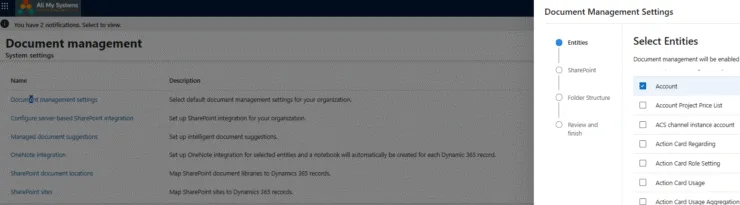
- From the same Document management settings page (Settings > Integration > Document management settings), select Document management settings
- Choose the entities you want to enable (for example, Account, Contact, Opportunity)
- If a SharePoint site URL isn’t already specified, enter it
- Select Next to apply
Documents stored in SharePoint remain accessible from inside Dynamics 365. Users can upload, view, and manage documents directly from the record’s Documents tab without leaving the app. Nothing changes for the user.
What about existing attachments already in Dataverse?
SharePoint integration only applies to new documents. For existing email attachments and notes already stored in Dataverse, you have two options:
- Delete them: use Advanced Find to search for emails or notes with attachments over a certain size. Filter by date, sender, or subject. Deleting removes both the attachment and the record.
- Move them: We recommend the third-party tool – Attachment Extractor (from mscrm-addons.com) which moves attachments from Dynamics to SharePoint while keeping the email record intact. This add-on moves the attachments from your emails from Dynamics’ expensive storage to SharePoint, which is relatively cheap. There’s a cost calculator on their website.
Reducing the size of AsyncOperation in Dynamics file storage
This table contains information about System Jobs, its storage is shared between the file storage and the database storage. To reduce the size of AsyncOperation, follow the steps for reducing the AsyncOperationBase size for database storage above

Reducing Log File storage in Dynamics 365
The largest user of log file storage is Audit Logs.
The default setting for all tables (entities) is to audit all changes to values across all fields, and to keep the logs forever. You can see how these logs will quickly balloon.
How do I delete audit logs in Dynamics 365?
Audit logs are the biggest consumer of Log storage. The default setting audits all changes across all fields on all tables, and keeps them forever.
How do I delete audit logs by date?
- Go to the Power Platform Admin Centre and select your environment
- In the Auditing section, click Delete audit logs
- Choose All logs up to and including the selected date and set a date
- The deletion runs as a background job. Check progress in Dynamics 365 under Settings > Data Management > Bulk Deletion

Storage usage won’t update immediately after deletion. The dashboard can take hours to reflect changes. Don’t panic if the numbers look the same straight away.
The logs will be scheduled for deletion. To see the progress, in Dynamics 365, go to
Settings > Data Management > Bulk Deletion to see the status of your job
Once you have deleted this date range, you might want to enforce a policy of not keeping audit logs older than a certain time period.
To retain logs for a fixed time period only
- Go to the Power Platform admin centre
- Choose the environment with the large log file storage
- In the auditing section, click Manage
- You can now choose how long you’d like to retain logs for in the future

How do I delete audit logs by table?
You’ll most likely want to audit changes to your main business tables (entities) like contacts, opportunities, and invoices, but there are usually many more tables which may not need auditing. You need to make a business decision about which entities you can stop logging on, and which are needed.
Some tables generate far more audit data than others. Check which ones by going to Advanced Settings > Auditing > Audit Summary View in Dynamics 365.

- In the Power Platform Admin Centre, select your environment
- Click Delete audit logs
- Choose By table, then select the table
The UI only lets you delete all audit data for a table in one go, or all data up to a date. You can’t combine both filters natively. For more granular control, you’ll need the BulkDelete API.
How do I turn off auditing for tables that don’t need it?
You probably want audit logs for Contacts, Opportunities, and Invoices. You probably don’t need them for every system table.
- In Dynamics 365, go to Advanced Settings > Customisations (or via Solutions)
- Select the table
- In the Data Services section, uncheck Auditing

FAQs
Dataverse long-term retention moves inactive records to compressed, read-only storage. Microsoft says this reduces database consumption by roughly 50% per GB moved. It doesn’t require an additional purchase. One limitation: file attachments aren’t compressed, so don’t expect savings on file-heavy tables.
Azure Blob Storage costs a fraction of Dataverse capacity per GB and is best for large volumes of archived files that don’t need regular querying inside Dynamics 365. You’ll need a Power Automate flow or custom integration to move data there. Dataverse capacity add-ons are significantly more expensive per GB than either SharePoint or Azure Blob alternatives.
Microsoft increased default Dataverse capacity and, for Finance and Operations customers, merged database and file capacity into a single shared entitlement. These changes apply automatically. If you’re currently paying for add-ons, re-evaluate whether you still need them.
Deactivated flows still consume Dataverse storage. Dynamics 365 Customer Insights – Journeys creates a flow for each journey, and they pile up once completed. Delete any deactivated flows you don’t need. Plugin trace logs are another commonly overlooked consumer, particularly in dev environments. Clear them via Advanced Settings > Customisations > Plug-In Trace Log.
Microsoft sends notifications at three thresholds: 15% remaining, 5% remaining, and full overage. At overage, certain admin operations (like creating new environments) are blocked until you free up space or buy more capacity.
Copilot transcripts count against your Dataverse File capacity. Default retention is 30 days, but you can reduce this. Impact depends on user count and how many Dynamics 365 fields are configured for Copilot summaries