


So, you’ve received an email from Microsoft with the subject “Immediate action required: Out of File/Database/Log capacity”.
What do you need to do?
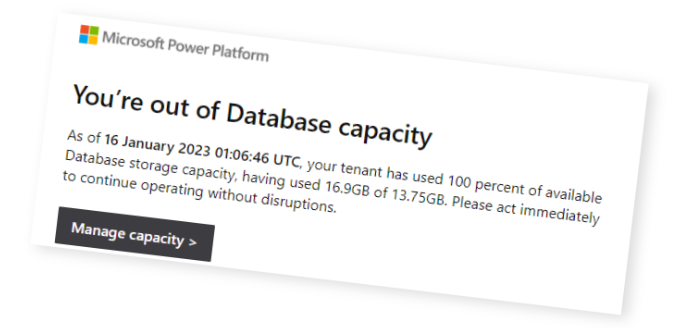
First of all, don’t panic.
You can continue to use your system as normal.
But that doesn’t mean you can ignore the message. It’s important to discover why you’re getting this message and what you can do to fix it.
Why am I getting ‘out of capacity’ messages?
Your Dynamics system stores three types of data, which Microsoft calculates separately:
- Database
- Files
- Logs
As your system grows over time, these 3 stores will will get bigger and bigger, and Microsoft have placed limits on how big they can grow.
What are the three types of Dataverse storage in Dynamics 365?
Dataverse uses three separate storage pools, each with its own capacity limit: Database, File, and Log.
- Database stores structured data: table rows, metadata, and relational data from Dynamics 365 apps like Sales, Customer Service, and Field Service. System tables like AsyncOperationBase and WorkflowLogBase sit here too.
- File stores attachments linked to notes, emails, and timeline activities. Documents, images, PDFs, and videos all count against File capacity. In most Dynamics 365 environments, this is the pool that fills first.
- Log stores audit history. Every field change on an audited table creates a log entry. Left unchecked, these grow fast.
All three pools are shared across your tenant. Every Dynamics 365 environment, every Power Automate flow, and every Power App draws from the same allowance. Your production, sandbox, and dev environments all share the same bucket.
If you use Dynamics 365 Finance and Operations, your Operations database and Dataverse database capacity now form a single combined pool for enforcement (since December 2025).
If you’ve chosen to reduce the data you’re storing, then you have three areas in Dynamics storage system where you can save space – Database, File and Log.
What should I do first?
How do I view how much Dynamics storage space I’m using?
Power Platform Admin Centre gives you two views of storage:
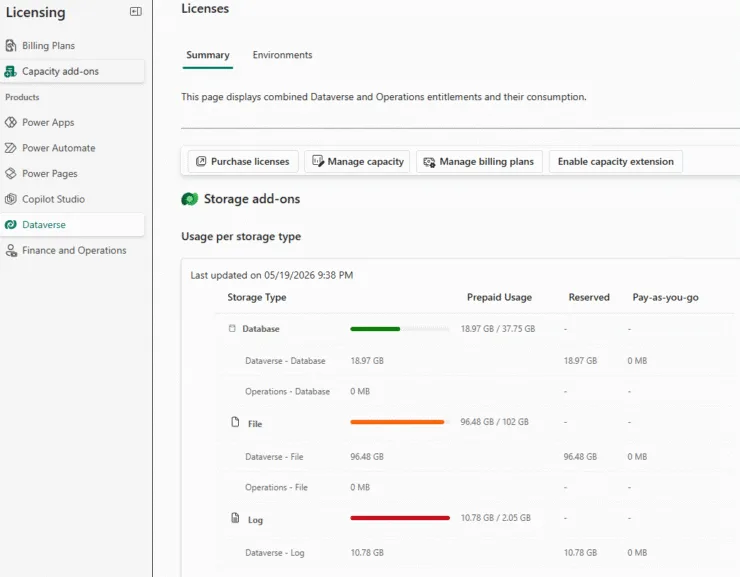
- a tenant-level summary under Licensing > Capacity add-ons,
- and a detailed per-environment breakdown under Licensing > Dataverse.
How do I check Dataverse storage capacity in the Power Platform Admin Centre?
Tenant-level summary
- Sign in to the Power Platform Admin Centre
- In the navigation pane, select Licensing
- Select Dataverse
The Summary tab (the default view) shows:
- Usage per storage type: how much Database, File, and Log capacity you’re consuming across the tenant
- Top 3 environments by storage consumption: which environments are consuming the most capacity
Per-environment detail
This is where you find the real culprits. It tells you which tables are eating your storage.
- From the navigation pane, select Licensing
- Select Dataverse
Look at the numbers in the Top environments consuming storage list, and click the environment which has the largest size (this is most likely your production environment)
In the Usage per storage type area, select Database, File, or Log to filter by storage type.
Below in the Consumption per table section, you can select any table name to see its daily consumption trend over the past three months.
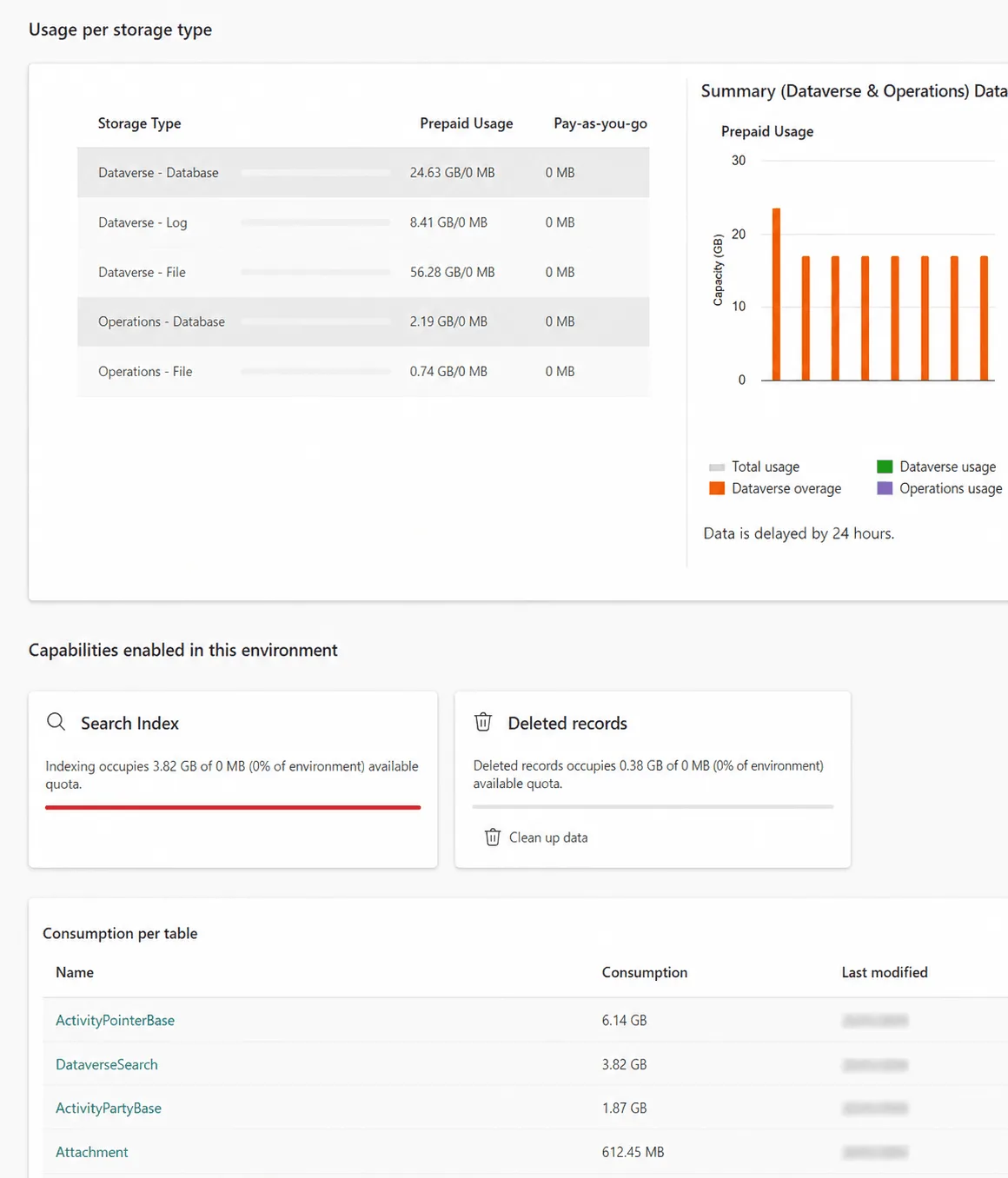
This is where you’ll find the tables causing the problem, often database tables like
- ActivityPointerBase
- AsyncOperationBase
- WorkflowLogBase
or in file storage
- look for large Annotation and Attachment counts.
Default, production, and sandbox environments all count toward your capacity. Trial, preview, support, and developer environments don’t. The default environment itself includes 3 GB database, 3 GB file, and 1 GB log capacity, and its usage in the list view only shows consumption above that included amount. Select the Details button to see actual usage.
What choices do I have to fix the storage space problem?
If you’re in charge of administering the system, you now have some choices:
- Delete data from your system
- Increase your storage space
- Move your data to a different storage space (hopefully cheaper)
If you’re not a system administrator, you should either
- Contact your Dynamics supplier, or
- Raise a support ticket with Microsoft
How to buy more storage space in Dynamics 365
If you have the Microsoft 365 Global or Billing admin roles, and you purchased Dynamics directly, you can buy more storage space.
- Go to Microsoft (Office) 365 admin centre
- From the menu, choose Billing > Purchase services
- Search for “Dataverse”
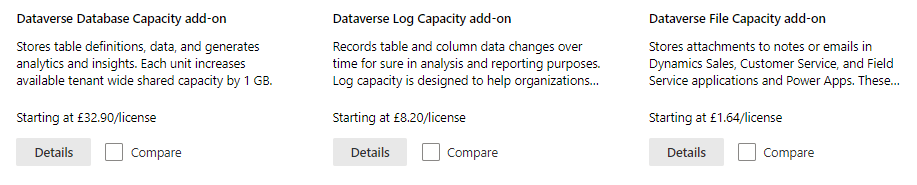
- Click Details against the type of storage you need to expand (database, file or log)
- Then choose the licence quantity you need. Each licence represents 1GB of storage.
If you’re not able to buy extra storage separately, you should contact your reseller. You’ll most likely find that you can save money by deleting data first.
How much does Dynamics storage cost?
As of May 2024, in the UK, the storage prices are
| Monthly price (annual subscription) | Monthly price (monthly subscription) | |
| Database storage | £32.90 | £39.48 |
| File storage | £1.64 | £1.97 |
| Log file storage | £8.20 | £9.84 |
How much storage space do I get with Dynamics?
| Storage | Default Storage | Per user storage |
| Database | 30 Gb | 250 MB/user |
| Files | 40 Gb | 2 GB/user |
| Logs | 2 Gb | 0 |
Sales Premium users get higher allocations
How to reduce Dynamics data storage
Deleting and removing data from your Dynamics system needs planning, as it’s easy to make a mistake and delete valuable business data. Restoring previously deleted data isn’t always easy, so plan and double check.
View our guides on how to reduce storage space in the three storage systems in Dynamics
- How do I reduce Dataverse Database size in Dynamics 365?
- How do I reduce File storage size in Dynamics 365?
- How do I reduce Log File storage size in Dynamics 365?
Alternatively, a more complex solution is to move some of your data to a cheaper storage solution. This can be configured so that you can still ‘see’ your data in Dynamics, but you won’t be able to edit it, or there may be other restrictions. This involves some technical knowledge and uses virtual tables. Ask your supplier about your options.
What will happen if I don’t act now?
If you don’t take action you’ll find that Microsoft may disable some parts of your system (details here)