


You might need to take a screenshot or screengrab when you are sending support queries to All My Systems.
Here’s the simple way to take a screen grab
- Make sure the error message to issue is visible on your screen
- Hold down the Windows and Shift keys and press S
- The screen will darken and your cursor will change to a crosshair
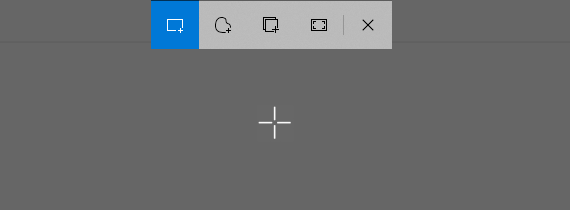
- Drag the cross hair to select the area you wish to capture
- The image will now be on your clipboard
- To add it to an email just press Ctrl+V at the point you wish to insert the image
Optional, to annotate the image
- After you select the area you wish to capture, a box will appear in bottom right of your screen
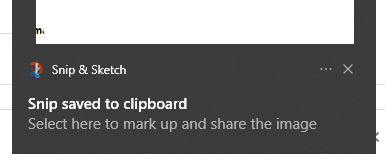
- Click the box and the screengrab will open
- You can now crop or draw on the image
- When you’ve finished you can copy the image to paste it into an email, or save it as a file.
